What can an autonomous AI assistant do on its own?
Some of your work, within limits you set. Assistants can now act in apps you allow, run saved tasks on a schedule and take requests for a computer you have paired. In Ace, scheduled cards run on Ace’s server at the time you choose, some of them can send email, and acting in apps on your computer needs the app control permission, which you can leave off.

Free Play: 2,000 credits, no card. Ace by Black Label.

What “autonomous” means for an AI assistant
An autonomous AI assistant carries out some work without you prompting every step: it runs at a time you set, reacts when something happens, or acts in your apps after you allow it. A chat assistant waits for a question and stops once it has answered. The real question is how much of a task to hand over.
Real products differ in how much of this they do. Assistants can now act in apps you allow, run saved tasks on a schedule, and take requests from your phone for a computer you have paired. Other assistants draw the line in different places, so the sections below show where each step stops in Ace and, from their makers’ own pages, in a few other assistants.
Autonomy is easier to judge as levels than as one switch. Each level hands the software a little more, so it pays to turn them on one at a time:
- Answers on request: it responds when you ask and does nothing in between.
- Drafts for approval: it prepares an email, reply or document, and you decide whether it goes anywhere.
- Acts when asked: it clicks, types or edits files in other apps, using a permission you granted.
- Runs on a schedule: it repeats a saved task at a set time, whether or not you are at the computer.
- Reacts to events: it watches for something to happen in another service and passes it on.
Four ways Ace can act for you
A note before the details: Ace is made by Black Label Tec, the team that publishes this guide, so read what follows about Ace with that in mind. These are guides to our own product, not independent reviews, and the examples are suggestions, not recordings of anyone’s results.
Each runs in a set place and needs something set up first, as the table shows.
| How Ace acts | Where it runs | What it needs first | Where you stay in control |
|---|---|---|---|
| Scheduled cards | On Ace’s server, at a time you pick | The apps you connected | Switch a schedule off or delete it whenever you like |
| Actions in apps on your computer | On the computer, with Ace running | The app control permission | A separate permission you can leave off |
| Requests to a paired computer | From your phone or browser to your computer | That computer on, paired and running Ace | Pairing routes the tasks or screen context you choose to it |
| Triggers and webhooks | Ace watches events in connected apps | A webhook address you own | Each event arrives signed for your handler to check |
Scheduled cards: work that runs while you are away
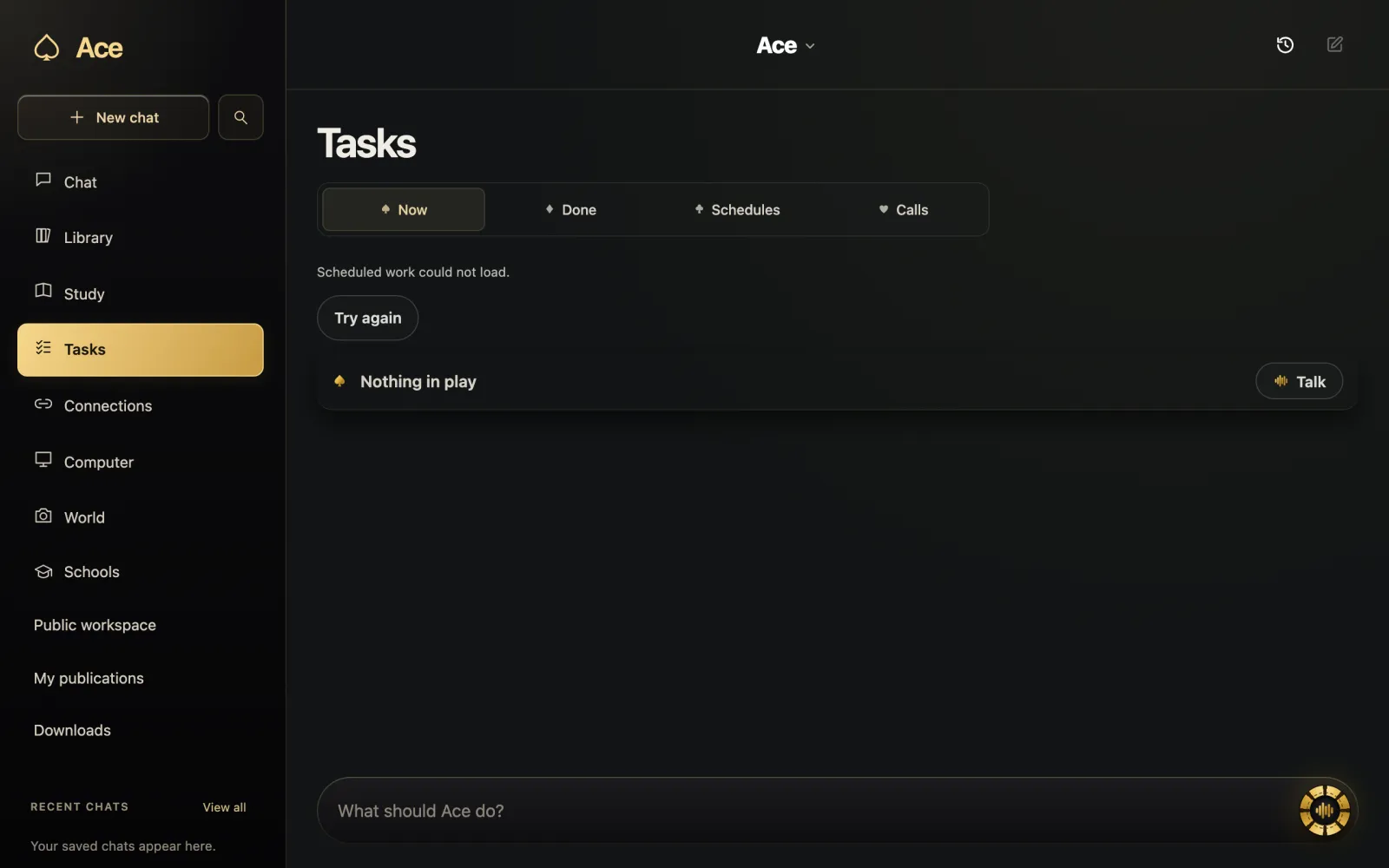
Scheduled cards are where Ace works with no one at the keyboard. When you save one, Ace’s server runs it at the time you chose, even when your phone is off, using the apps you connected, for example reading your Gmail. A suggested first card reads your Gmail each morning and lists what needs a reply. The Tasks area of Ace’s web workspace lists what is running now, what is done, your schedules and calls.
This is also where sending enters the picture. Some cards can send email on your behalf, so read what a card will do before you save it. Ace’s security page says Ace can send email on your behalf when you confirm it, or through a scheduled card you choose.
You can switch a schedule off or delete it whenever you like, and deleting your Ace account removes your schedules within 7 days. Because a card runs on Ace’s server, your phone can be off while it works; anything that needs your computer’s screen or files needs that computer on, paired and running Ace.
In Ace BL for iPhone and iPad, twelve workflow cards are available during setup or from Tasks, and each walkthrough explains its source and permissions. Choose a time and save a reminder to return to a card; saving a time does not immediately run an AI request.
Acting in apps on your computer
On the computer itself, Ace works with the tools available there: opening an app, working on a file, reading a chart. That needs app control, a permission separate from the microphone and the screen, which you can leave off. On Windows, app control stays off until you turn it on. On a Mac, Ace uses Accessibility or app control only when you ask it to assist with an explicit desktop action, and revocation takes effect immediately in macOS.
What Ace can do in a given app is limited too: specific computer actions depend on the app, its permissions and the connections available. For writing, you give Ace the subject, source material and format, watch it write in your document, then keep editing the result. The Mac release notes list computer control among Ace’s features, and the current Windows build keeps native automation alongside a hosted task runtime.
Acting in apps carries real risk, and Ace’s terms say so: Ace operates on real files on your computer, so work with a backup, as you would with any tool that can change your files. Apple adds a caution for any Mac app: grant Accessibility only to apps you know and trust, because accessibility access can also expose information such as your contacts and calendar.
A paired computer and event triggers
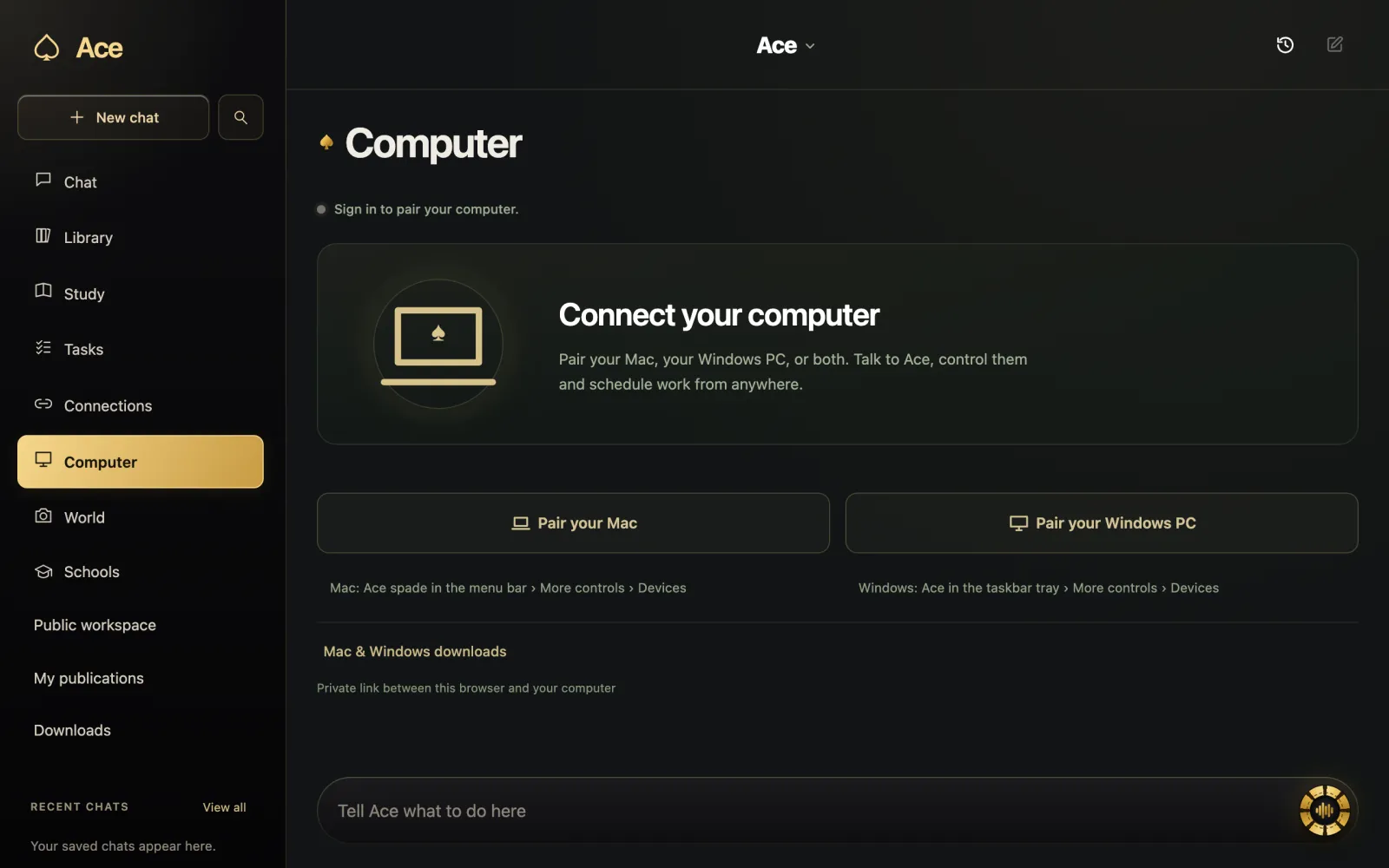
Pairing lets you hand work to your computer when you are not sitting at it. Computer, in Ace’s web workspace, pairs your Mac or Windows PC with your account so you can talk to Ace and hand it work from anywhere. On iPhone and iPad, the Ace BL app can optionally pair with Ace on your own computer to send a task there or view its screen, and the current Windows release notes describe mirroring your real Windows screen on Ace iOS 1.0.4 or later.
Pairing is still bounded. It uses device and connection records to route the tasks or screen context you choose to that computer, which is why the computer has to be on and running Ace. Computer features need that computer online and the appropriate permissions.
Triggers are the event-driven side. Ace can watch events in connected apps, such as a new payment, a new issue or a new message, or accept webhooks from any service, and forward each event, signed, to an address you own. It keeps the last 50 events per trigger and tries each delivery three times. What happens next is up to the code at your address, which should check the signature in the x-ace-signature header before it trusts the body.
How other assistants draw the line
Other makers describe their own ways of acting on a computer. OpenAI lists Computer Use on macOS and Windows; you set it up first under Settings > Computer use in the ChatGPT desktop app, and it is not yet part of the Linux preview. Claude’s computer use, which works from screenshots of your screen, runs in Cowork and Claude Code on macOS and Windows and is a beta for Pro, Max and Ultra, according to its maker’s pages.
Microsoft splits the job differently. Copilot Vision guides rather than acts, and Microsoft states that Vision will not take actions on your PC for you; Microsoft points multi-step projects to Copilot’s Cowork, which it describes as taking a multi-step project and coming back with finished files. On Copilot+ PCs, Windows 11’s agent in Settings lets you type the change you want, such as “my mouse pointer is too small”, and approve it.
Whichever you use, start with tasks whose results you can check. Ace’s own terms say it uses a language model that can be wrong, incomplete, or confidently mistaken.
How to start, and where you stay in control
For a first week, begin with read-only tasks, such as summaries, before any task that sends something, and keep sending steps as drafts you approve until you trust the task. Leave app control off for the first week, then turn it on for one task you repeat often. Add one daily schedule, for example a morning summary, and read what it produces before you let any card send on your behalf.
Keep the responsibility where Ace’s terms put it: you are responsible for reviewing output before relying on it, sending it, filing it, or acting on it.
Know which controls exist before you need them. These are the ones Ace’s own pages describe:
- Drafts you approve: messages and emails you start from the app become a draft, and you review it and send it yourself.
- Permissions: microphone, screen, file and app-control access each go through the operating system’s own permission prompt, and you can turn any of them off later.
- Schedules: switch a schedule off or delete it in Tasks at any time.
- Connections: connect only the apps a task needs and disconnect the rest whenever you choose. Disconnecting does not undo an email already sent or an event already created.
- Activity: the activity list shows the last 25 actions run with your keys, through MCP or on the site.
- Keys: every setup that lets another AI app use your connected apps through Ace’s MCP server needs an Ace key. Use a key with Read permission alone wherever you only need to look things up, and revoke any key that might have leaked.
- Spending: top-ups are one-time and never automatic, and Free Play does not become a paid subscription on its own.
More from Ace
The full overview of Ace for your PC is on tryacee.com/ai-for-pc.
Also asked
What is an autonomous AI assistant?
An assistant that carries out some work without you prompting each step: at a set time, when an event happens, or in your apps after you allow it. Assistants can now act in apps you allow, run saved tasks on a schedule and take requests for a computer you have paired. Other assistants draw the line in different places.
Is Ace an autonomous AI agent?
In specific ways you set up. Ace runs scheduled cards on its server at the time you choose, operates apps once you switch app control on, takes requests for a paired computer and can forward events from connected apps through triggers. Some scheduled cards you choose can send email on your behalf; messages and emails you start in the app become drafts that you review and send yourself.
What is the difference between an AI assistant and an AI agent?
The words overlap, but an agent usually means software that takes actions rather than only answering. Voice control tools turn spoken commands into clicks and typing, chat assistants answer questions, and agents operate apps for you, such as ChatGPT’s Computer Use on macOS and Windows. In Ace, acting is behind its own switch: app control is a permission separate from the microphone and the screen.
Is it safe to let an AI assistant control my computer?
It carries real risk, so limit it. Operating apps means granting a permission that lets software click and type for you. Apple advises granting Accessibility only to apps you know and trust, and Ace’s terms say it operates on real files on your computer, so keep your own backups. Leave app control off at first, then turn it on for one task you repeat often.
Can I undo something an assistant did in my connected apps?
Not always. Disconnecting a Google account in Ace removes the stored connection and tokens, but it does not undo an email sent, an event created or a spreadsheet change you previously authorized. That is why sending steps should stay as drafts you approve until you trust a task.
How do I stop an assistant from acting on its own?
Close each route you opened. In Ace, turn app control off in your operating system’s permissions, switch schedules off or delete them in Tasks, disconnect apps a task no longer needs, and revoke any key that might have leaked. A paired computer takes requests only while it is on and running Ace, and triggers only forward events, signed, to an address you own. Then check the activity list, which shows the last 25 actions run with your keys.
What is the difference between a scheduled task and a trigger?
A scheduled card runs on Ace’s server at the time you chose, using the apps you connected. A trigger waits for an event instead, such as a new payment, a new issue or a new message, and Ace forwards each event, signed, to an address you own. It keeps the last 50 events per trigger and tries each delivery three times.
Can other AI chats act in my apps through Ace?
Yes, if you give them a key. Ace runs a remote MCP server, so Claude, ChatGPT, Cursor or VS Code can use the apps you connected. You choose each key’s permissions: Read lists apps, connections and tools; Connect makes sign-in links and disconnects apps; Run acts in connected apps. Use a key with Read permission alone wherever you only need to look things up.
Can I build my own AI agent on top of Ace’s connected apps?
Yes. Ace’s SDKs include tools.definitions(), which returns OpenAI or Anthropic tool definitions, so your own model can call connected apps and hand its tool calls back to tools.run(). The SDKs are for JavaScript and Python, and the REST API is authorized with a Bearer key and limited to 120 requests a minute per key.
Does Claude have a computer use feature like ChatGPT’s?
Yes, by its maker’s own pages. Claude’s computer use works from screenshots of your screen, in Cowork and Claude Code on macOS and Windows; it is a beta for Pro, Max and Ultra and not available on Linux. OpenAI lists Computer Use for ChatGPT on macOS and Windows, set up first under Settings > Computer use in the desktop app.
Can I watch Ace while it writes in my document?
Yes. Give Ace the subject, source material and format, then watch it write in your document and keep editing the result yourself. Ace writes in apps such as Google Docs for you to review, so check any generated writing before you use it. Other actions depend on the app, its permissions and the connections available.
Can I view my computer’s screen from my phone?
With pairing, yes. The Ace BL app on iPhone and iPad can optionally pair with Ace on your own computer to send a task there or view its screen, and Ace’s current Windows release notes describe mirroring your real Windows screen on Ace iOS 1.0.4 or later. Computer features need that computer online and the appropriate permissions.
Will Ace top up credits or start a subscription without asking?
No. Top-ups are one-time and never automatic, so Ace does not reload credits on its own. Free Play starts with 2,000 free credits and does not become a paid subscription on its own; paid access starts only if you choose and confirm a paid checkout.
Who is responsible for what an AI assistant does for me?
Under Ace’s terms, you are responsible for reviewing output before relying on it, sending it, filing it, or acting on it. Ace produces drafts and performs actions you asked for, using a language model that can be wrong, incomplete, or confidently mistaken, so read results before they matter.