An AI assistant for your PC, like Jarvis
You can get surprisingly close. A Jarvis-like setup needs four things: you speak and it answers out loud, it understands what is on your screen, it can act in your apps, and it keeps working when you step away. Copilot on Windows, ChatGPT’s desktop app and Ace each cover part of that, with different trade-offs in wake words, permissions and cost.
Free Play: 2,000 credits, no card. Ace by Black Label.
♠A
♠
What “like Jarvis” means on a real computer
J.A.R.V.I.S., Tony Stark’s assistant in the Iron Man films, talks naturally, sees what Stark sees, acts without being told twice and runs the whole house. Take away the film and four abilities remain. Each one now exists on an ordinary Windows, Mac or Linux computer, though no single product does all of them the way the films do.
| Jarvis ability | What exists today | Where you find it |
|---|---|---|
| Talk and hear an answer | Voice in, a spoken reply out, and follow-up questions | Copilot Voice, ChatGPT Voice on paid plans, Siri, Ace |
| See what you see | Screen sharing or questions about the screen, when you allow it | Copilot Vision, Siri AI (Beta) on macOS 27, Gemini for desktop, Ace |
| Act in your apps | Operating apps and files with your permission | ChatGPT Computer Use, Ace with app control switched on |
| Work while you are away | Scheduled or multi-step tasks | Copilot Cowork, recurring work in ChatGPT, Ace scheduled cards |
Wake word or hotkey
A wake word is the most film-like choice. On Windows, “Hey, Copilot” is opt-in: Microsoft says it works only after you turn it on in Copilot settings, and only while your PC is unlocked and the Copilot app is running. On a Mac, “Hey Siri” or “Siri” works where Apple offers it. Without speaking, the Copilot key or Windows key + C opens Copilot.
Ace uses hold-to-talk instead. Hold Ctrl + Shift on Windows or Command + Shift on a Mac, speak, and release; on Linux you choose the keys. It is less cinematic, but a spoken question is heard while you hold the keys, and you never have to say a name across a quiet office.
Seeing your screen
Copilot Vision is Microsoft’s screen feature on Windows: you click the glasses icon, choose which app or desktop to share, and Copilot talks you through it. Microsoft states that Vision will not take actions on your PC for you. On macOS 27, Siri AI (Beta) answers questions about what is on screen, and Gemini’s desktop app lets you share a window.
Ace looks at the screen you are on when you ask, after you allow screen access in the operating system, and you can switch that permission off at any time. Asking “what does this error mean?” with the error in front of you is the everyday version of Jarvis reading a display over your shoulder.
Acting in your apps
This is where films and real software part ways most. Operating apps means granting a permission that lets software click and type for you, so each maker gates it carefully:
- ChatGPT: OpenAI lists Computer Use on macOS and Windows; on Windows you install the Computer Use plugin first. It is not yet part of the Linux preview.
- Copilot: Vision guides rather than acts, and Microsoft points multi-step projects to Cowork.
- Built-in voice control: Windows 11’s voice access opens and switches apps, browses the web and handles email by voice, using on-device speech recognition, in English, Spanish, French and German. macOS has Voice Control in System Settings > Accessibility.
- Ace: app control is its own permission, separate from the microphone and the screen. Leave it off and Ace talks, looks and drafts; switch it on and it can operate apps for you.
Keeping work going while you are away
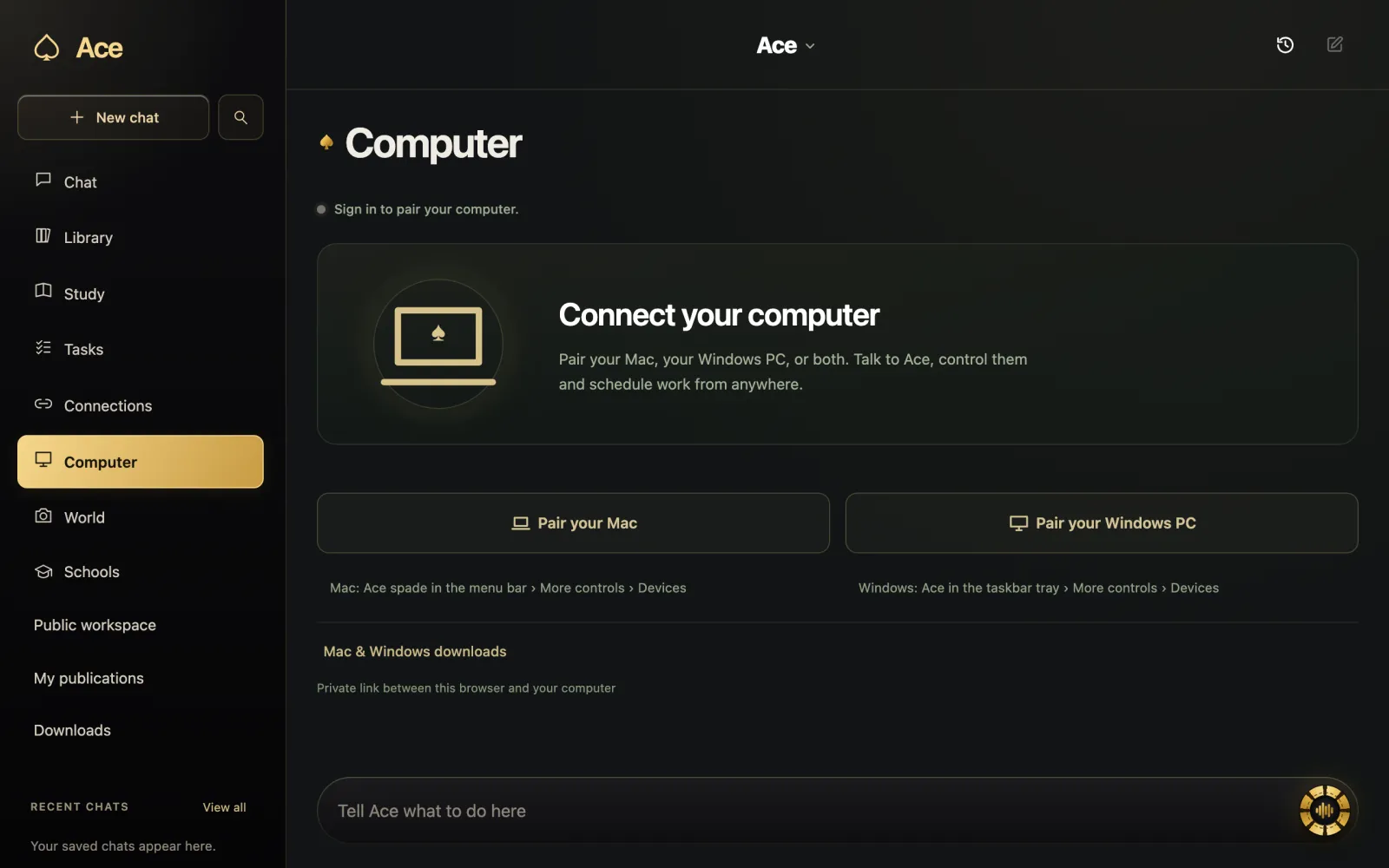
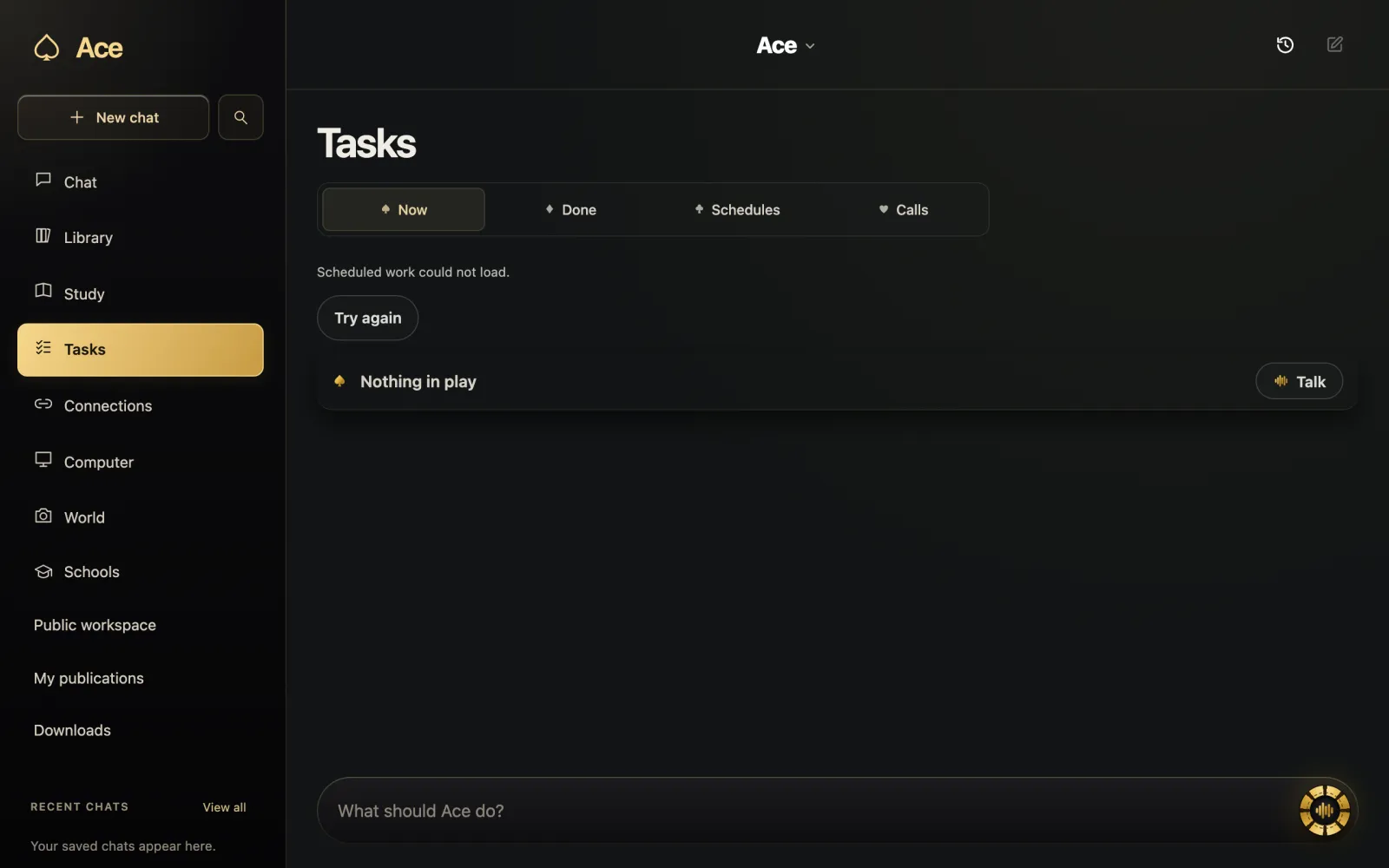
Jarvis never waits to be asked twice. The closest real equivalent is a scheduled task. Ace’s web workspace has a Tasks area for what is running, what is done, schedules and calls, and a scheduled card runs on Ace’s server at the time you pick, using the apps you connected, even with your phone switched off. The workspace’s Computer area pairs your Mac or Windows PC with your account, so you can reach Ace on that computer from anywhere.

A realistic setup on an ordinary PC
- Pick an assistant that answers out loud, and test it with a headset first.
- Give it screen access only when you want screen questions, and check that you can switch it off again.
- Leave app control off for the first week, then turn it on for one task you repeat often.
- Connect only the accounts a task really needs, such as your calendar or email.
- Add one daily schedule, for example a morning summary, and read what it produces.
- Review results before anything is sent; every assistant here can be wrong.
Where every option still falls short of the film
The film’s assistant also runs a whole house, never loses its network and never errs. Real ones differ. Hosted assistants need an internet connection for every answer. Wake words trade privacy for convenience, which is why Microsoft makes “Hey, Copilot” opt-in. And no maker claims its assistant is never wrong: Ace’s own terms say results come back to you for approval because a person needs to read them before they matter.
More from Ace
The full overview of Ace for your PC is on tryacee.com/ai-for-pc.
Also asked
Is there a real Jarvis for PC?
Not as in the films, but you can combine spoken answers, screen awareness, app control and scheduled tasks today. Each assistant covers a different mix.
Can an AI assistant listen for a wake word on my PC?
Yes, if you opt in. Microsoft’s “Hey, Copilot” works only when switched on in Copilot settings, while the PC is unlocked and the Copilot app is running. Ace uses a held hotkey instead.
Can an AI assistant control apps on my PC?
Some can, with permission. OpenAI lists Computer Use for ChatGPT on macOS and Windows, and Ace can operate apps once you grant app control. Copilot Vision guides you but does not act.
Does Ace run on Windows 10?
Yes, on Windows 11 and Windows 10.